
The simplest way to sync a caregiver or nanny calendar is to pick one shared schedule as the single source of truth. Everyone who needs it views it from their own phone, and every change gets posted there first. This guide shows how to set that up, how to color-code it so a week reads at a glance, and how to share it without exposing more than each person needs.
It is written for parents who hire nannies or au pairs, and for seniors and their families who hire caregivers. You do not need technical skills. You need a few agreements and a calendar everyone trusts.
TL;DR
- Choose one shared calendar as the source of truth. Do not keep separate copies in several places.
- Syncing and sharing are different. Sharing gives someone access to one calendar. Syncing copies events between accounts, and it can lag.
- Color-code by person first. Add no more than two or three type colors, and always put plain words in the event title.
- Post every change on the shared schedule. For short-notice changes, also send a direct message.
- Give each person the lowest access their role needs, and keep medical details, passwords and payment data out of broadly visible fields.
Table of Contents
- What calendar sync means for a nanny or caregiver
- How to set up a synced caregiver schedule in five steps
- Color coding that makes a week readable
- Handling changes and recurring shifts
- When caregivers use different calendar services
- Privacy and access: share the schedule, not the whole file
- Why we built it this way
- Get the schedule and the hours right from the start
- Putting it together
- FAQ
- Sources
What calendar sync means for a nanny or caregiver
Most households already have several calendars: work schedules, school, sports, medical appointments, a paper calendar on the fridge and a portal or two. A caregiver adds another one, with their own shifts, other jobs and time off.
Syncing means choosing one shared calendar as the family's source of truth and letting people view or subscribe to it from the apps they already use. Pally's guide to managing a family calendar across apps recommends putting every event that affects another person on that shared calendar, with an owner, a location and a departure time.
That last part matters for caregivers. "Pick up at 3:15" is a plan. "Pick up" is a guess.
Sharing is not the same as syncing
The two words get mixed up, and the difference explains most calendar surprises. OneCal's family calendar guide defines sharing as permission to view or edit one calendar. Syncing mirrors events between separate accounts. An imported calendar can be stale or slow to refresh.
In practice:
- Sharing means a parent and a nanny both look at the same schedule. There is only one copy, so there is nothing to fall out of step.
- Syncing means each person keeps their own calendar and a connection copies events between them. It is convenient, but it can delay updates or behave differently when you edit or delete.
If you can choose, favor sharing one calendar over keeping many synced copies. Fewer copies means fewer missed shifts.
How to set up a synced caregiver schedule in five steps
You can finish this in an evening. Do it together with your caregiver so the result fits how they actually work.
- List every calendar in play. Write down work, school, sports, appointments, paper and portal calendars. Mark each as shareable, subscribable or manual entry. This inventory is the first step in the Pally guide, and it shows you where double entry will happen.
- Pick the home for the schedule. Choose the one place where shifts, schedule requests and changes live. Everything else points to it.
- Enter the recurring pattern first. Add regular shifts, school runs, standing appointments and the usual end time. Then add the exceptions.
- Give every event an owner. Each event needs a person responsible for it, a place and a time. For senior care, add a backup person too.
- Set a weekly check. Go Au Pair recommends choosing one day each week to review the coming schedule together and flag conflicts. Ten minutes on Sunday evening catches most problems before they become missed shifts.
Where our app fits
If your caregiver works for more than one family, one household's calendar is only part of their week. That is why Caretracker gives caregivers a single calendar that shows all their jobs together. Families can send schedule requests, caregivers approve them, and hours are tracked as the work happens. You can read more in our guide to a unified family calendar for nannies and caregivers and our look at why a purpose-built app beats a general calendar for nanny work.
Color coding that makes a week readable
Color works because it changes how you read. A busy week read word by word takes a minute. Read by color, it takes a glance. The goal is to see who is working, who is covered and where the gaps are.
Start with one color per person
The most common advice is also the simplest: give each family member a color so users can quickly see whose events apply to them, as Go Au Pair suggests. For a household with a nanny, Cakes & Days offers a useful twist. Build the calendar from the child's point of view. The child has no color, and every event takes the color of the person the child is with. A glance then tells you who has the child at any hour.
For a senior's care team, the same idea works. Give the senior no color, and give each caregiver, relative and visiting professional their own.
Add a few type colors, and stop there
Color by type is useful for categories that cut across people. NestBoard's guide suggests at most two or three type colors, and it warns that most families who give up on color coding tried to use person and type colors at the same time. Choose colors from different families, such as green, purple, orange, blue and gold, so they do not blur. Post a legend where everyone can see it.
One convention from senior care is a helpful model. Piccline Nursing describes blue for appointments, green for personal care, red for medications and yellow for household support.
| Use | Suggested approach | Example |
|---|---|---|
| Who is working | One color per person | Maria: purple, Dan: orange, Grandma's helper: green |
| What kind of event | Two or three type colors at most | Medical: red, school closure: blue, travel: gold |
| Event title | Always plain words | "Dr. Lee 2:30, Maria drives" |
| Legend | Posted where everyone sees it | Pinned note or printed card |
Never let color carry the whole message
Piccline Nursing also points out that color alone is not accessible, so every important event should include words. Someone with color blindness, or someone glancing at a small phone screen in sunlight, needs the title to say what the color implies. Treat color as a way to scan faster, not as the message itself.
Handling changes and recurring shifts
Most missed shifts do not come from a bad calendar. They come from a change that never reached it: a text that said "I can come an hour later" and was never posted.
Agree on one rule: a swap or cancellation is not final until it is on the shared schedule or reported to the person who owns the schedule so they can post it. Nappot's setup guide suggests that for changes within 48 hours, you should update the calendar and also send a direct message. The calendar holds the lasting plan. The message makes sure a person actually sees the short-notice change.
A few habits that keep recurring shifts accurate:
- Edit the right scope. Changing one Tuesday is not the same as changing every Tuesday. Check whether you are editing a single occurrence or the whole series.
- Name the owner. Every change has one person who posts it.
- Add a one-line handoff note. Tell the next person what they need to know: nap timing, a new medication time, a pickup change. Our one-page caregiver handoff checklist shows what to include in three to five minutes.
- Keep time off in the same place. Time-off and reimbursement requests are easier to approve when they sit next to the schedule they affect.
When caregivers use different calendar services
One person lives in Google, another in Apple, a third in Outlook through a second job. You have two reasonable options.
Option one: share a single calendar and have everyone add it to their phone. This avoids copies. Most phones can display a shared calendar from another provider next to the user's own events, so nobody has to switch apps.
Option two: use a sync tool between accounts. OneCal recommends a sync tool over one-time imports, which are usually slow to refresh. Updates from an import can take up to 24 hours to appear, which is long enough to miss a shift.

Know what your sync actually does
Labels like "one-way" and "two-way" can be misleading. Whispal explains that seeing the same event in two calendars does not prove that editing or deleting it in one place will update the other. Its advice is to test create, edit, delete and recurring-exception actions separately before you rely on a connection. Deletion is the action most likely to reveal a false assumption, because a removed event may linger as a snapshot or come back.
If your caregiver says they cannot see an update, work through this short list:
- Ask them to refresh the calendar and check which account they are viewing.
- Confirm they are subscribed to the shared calendar and not looking at an old import.
- Check whether the event was changed on the original or on a copy.
- Wait for the refresh window to pass, then send a direct message for anything urgent.
Privacy and access: share the schedule, not the whole file
A care calendar shows when a home is empty, when a child is alone with a caregiver and when a senior takes medicine. That is useful for the care team and sensitive for everyone else.
Give each person the least access they need
Whispal's privacy checklist advises an individual account for each person with the lowest permission their role needs. It also says to keep passwords, access codes, identity documents, payment data and detailed medical notes out of broadly visible fields, and to review permissions account by account.
A simple three-level model works for most households, as the Nursing Home Placement guide describes. The owner controls sharing, assigned editors change events, and people who only need visibility get view-only access.
Keep clinical details in a secure place
Held While Caring makes the point that a calendar is the visible schedule, not the complete care record. Clinical details, financial documents, passwords, legal papers and sensitive notes belong in secure records with controlled access. The calendar entry can say "Medication 8:00 a.m., see care binder" without listing the drug and dose. Our guide to a digital care binder and our steps to protect caregiver data cover where that information can live. If you also need a plan for sharing passwords for emergencies, set a limited window rather than putting credentials in a shared calendar.
Review access when things change
Held While Caring recommends agreeing in writing that the care recipient approves who receives access whenever possible. It also recommends that no one forwards screenshots without permission, and that access is reviewed when relationships, services or responsibilities change. Nursing Home Placement suggests periodic checks on whether each person still helps and still needs access. When a caregiver leaves the household, remove their access the same day.
Why we built it this way
We hear the same story from families again and again. A shift change was sent by text, nobody posted it, and someone showed up at the wrong time or not at all.
That is why we believe the schedule, the hours and the care details should live in one place that the caregiver can open without hassle. A caregiver should not have to pay to be organized, so Caretracker is completely free for caregivers. They see all their jobs in one calendar, approve schedule requests and track weekly hours accurately.
The same screen gives them the information that matters on the job: allergies, medications, emergency contacts, nap schedules, nursing schedules and daily activities. Families get transparency and trust, and caregivers get clear expectations.
Accurate records also protect both sides. When hours are tracked as the work happens, there is less to reconstruct at tax time and fewer disagreements about what was worked. That is the peace of mind we are building toward.
mercedes
Get the schedule and the hours right from the start
A synced calendar tells you when someone is scheduled to work. It does not tell you what was worked, and household employers need that for payroll. Caretracker is a scheduling and time-clock app that caregivers use for free, with support for state-specific pay period and overtime tracking.
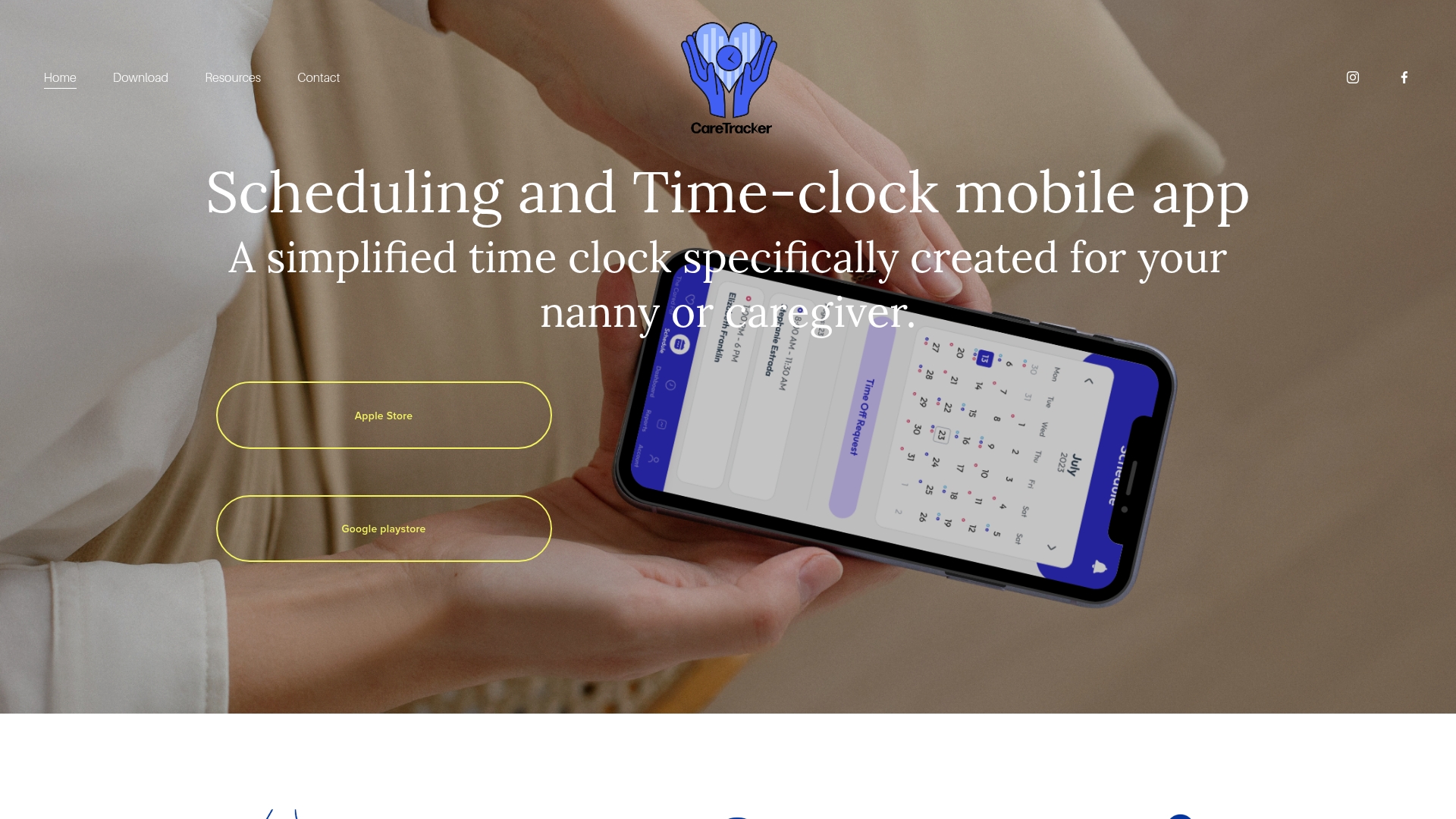
If you are a household employer who also needs help with payroll, taxes or compliance, we offer a Standard Payroll Consultation package for a one-off $150. For households that need to fix the past, our Prior Wage Reporting and Household Payroll Cleanup Services cover earlier wage reporting and payroll cleanup. To see the app itself, start at the Caretracker home page or the nanny time tracking page.
Putting it together
A good synced caregiver calendar comes down to a handful of agreements:
- One shared calendar is the source of truth.
- Every event has an owner, a place and a time.
- Color shows the person first, with a few type colors at most, and words always appear in the title.
- Changes go on the calendar, and short-notice changes also get a message.
- Access is limited to what each role needs and reviewed when anything changes.
If you have several caregivers, our 48-hour care plan for coordinating multiple caregivers is a good next step. For a broader look at the tools, see our caregiver scheduling app guide.
FAQ
How do I sync my nanny's schedule with our family calendar?
Start by choosing one shared calendar and giving your nanny access to it. Enter the recurring shifts, assign an owner to each event and review the coming week together once a week. Avoid copying events across several calendars, because each copy can fall out of date.
What is the best way to color code a caregiver calendar?
Give each person one color and keep type colors to two or three. Put a legend where everyone can see it, and write a clear title on every event so the message does not depend on color alone. Piccline Nursing's senior-care example uses blue for appointments, green for personal care, red for medications and yellow for household support.
Why is my caregiver not seeing calendar updates?
The most likely cause is a subscribed or imported calendar that refreshes slowly. Some imports can take up to 24 hours to update. Ask the caregiver to refresh, confirm they are looking at the shared calendar, and send a direct message for any change that is within a day or two.
Is it safe to put medication details in a shared calendar?
It is better not to. Keep detailed medical notes, passwords and payment data out of broadly visible fields, and point to a secure care record instead. A title such as "Medication 8:00 a.m., see care binder" gives the caregiver the cue without exposing the details to everyone who can view the calendar.
Sources
- Manage a family calendar across apps | Pally
- How to Sync Family Calendars | OneCal
- Using Shared Family Calendars with Your Au Pair | Go Au Pair
- The Ultimate Guide to Colour Coding Your Family Calendar | Cakes & Days
- Color-Coded Family Calendar: How to Set One Up | NestBoard
- How to Set Up a Shared Caregiver Task Calendar | Piccline Nursing
- Shared Family Calendar for Caregivers: 15-Minute Setup | Nappot
- One-Way and Two-Way Calendar Sync | Whispal
- A Privacy Checklist for a Shared Family Calendar Display | Whispal
- Building a Shared Family Care Calendar Without Sharing Too Much | Nursing Home Placement
- A Shared Caregiving Calendar Families Will Use | Held While Caring
- Emergency Password Sharing for Solo Agers | Aging Solo