
A "google calendar for nanny" search usually leads to the same conclusion: a generic calendar app was never built for the way caregivers actually work. What you really need is a nanny scheduling app that unifies every job in one view, handles schedule requests, tracks weekly hours accurately, and keeps care instructions ready at a glance. That is the standard to which we hold this guide, and it is exactly what Thecaretracker was built to do.
A dedicated app beats a repurposed calendar because it was designed around your job, not a generic meeting schedule. Here's what that looks like in practice:
- One screen shows every family's shifts, no color-coding workarounds needed
- Schedule changes get approved, not just noted
- Hours log automatically, protecting your pay
- Allergies, meds, and routines live where you need them, not buried in a text thread
Key Takeaways
A purpose-built nanny calendar app works because it replaces memory and scattered tools with one system that handles scheduling, hours, and care details together.
| Point | Details |
|---|---|
| Choose a dedicated app | A nanny-specific calendar unifies multiple jobs, request approvals, and time tracking in one place. |
| Log hours immediately | Clock in and out in real time rather than reconstructing hours later, which prevents disputes. |
| Keep records for three years | Follow DOL guidance on daily hours, weekly totals, and pay rates. |
| Separate households completely | Never mix medication notes or emergency contacts across different families' profiles. |
| Use Thecaretracker to start | Thecaretracker offers unified scheduling, approvals, and hour tracking free for caregivers. |
Table of Contents
- Why a Nanny-Specific Calendar Beats General-Purpose Calendars
- How the Core Features Map to Your Daily Job
- Set Up Your Nanny Calendar and Time Tracker in One Sitting
- Best Practices and Routines That Prevent Disputes and Burnout
- What to Keep for Pay and Legal Protection
- How to Set Up Event Reminders and Notifications for Nanny Shifts
- Sharing Calendar Access Securely With Parents and Other Caregivers
- Tips for Syncing Your Nanny App With Mobile Devices
- Managing Recurring Shifts and Last-Minute Changes
- Privacy Settings for Sensitive Family Information
- Why the Real Fix Is Fewer Tools, Not Better Habits
- How Thecaretracker Puts This Workflow Into Practice
- Sources
Why a Nanny-Specific Calendar Beats General-Purpose Calendars
A regular calendar app tells you where to be. It does not tell you what to do when you get there, how many hours you have worked this week, or whether a family has actually confirmed the extra Thursday shift you agreed to over text. That gap is where disputes and burnout start.
Families juggling nannies, babysitters, and backup caregivers already manage a stack of separate apps for chat, photos, and scheduling, and important details routinely fall through the cracks between them, according to reporting on host family app overload. A nanny-specific calendar consolidates that sprawl into one place.
Four features make the real difference:
- Unified view across jobs: see every household's shifts and your own availability blocks side by side, so you never accidentally double-book a Tuesday
- Built-in request workflows: schedule changes arrive as a request you approve or decline, not a verbal promise you have to remember
- Automatic time tracking: hours log as you work, with overtime flagged before it becomes a payday surprise
- Care profiles tied to events: allergy notes and medication schedules attach directly to the shift they apply to
Caregivers who consolidate scheduling, messaging, and time logs into one professional app report higher satisfaction and better retention than those piecing together separate tools, based on workforce recordkeeping research.
Pro Tip: If you work for two or more families, resist the urge to keep a "master" mental calendar. Put every commitment, even tentative ones, into the app the moment it's discussed. Memory is where scheduling conflicts are born.
How the Core Features Map to Your Daily Job
Knowing what a feature does is different from knowing when to use it mid-shift. Here is how the pieces fit into an actual working day.
- Check the unified calendar first thing. Before you commit to anything, glance at every household's block for the week. This is what prevents the classic mistake of confirming a Saturday for Family B when Family A already has you booked.
- Handle requests inside the app, not by text. When a parent asks to shift Wednesday's pickup by an hour, approve or counter it in the app so there is a timestamped record both sides can reference later.
- Log hours the moment a shift starts and ends. Clock in when you arrive, clock out when you leave. Waiting until the end of the week to reconstruct your hours from memory is how disputes start.
- Keep care details attached to the shift, not scattered in old messages. Allergies, medication timing, emergency contacts, and nap or nursing schedules should sit inside that family's profile, accessible in seconds, not buried in a June text thread.
- Write a short shift note before you leave. A one-line entry ("early nap, ate well, no incidents") takes fifteen seconds and saves a confused phone call at 9 p.m.
Attaching a brief note to any shift that broke from routine, an early pickup, an extra errand, a sick moment, prevents misunderstandings once payroll gets calculated, according to tracking guidance for household caregivers. The habit costs you almost nothing in the moment and saves real friction later.
Set Up Your Nanny Calendar and Time Tracker in One Sitting
You do not need a weekend to get this running. Most caregivers can complete the whole setup in under thirty minutes.
- Create a separate profile for each household and fill in care recipient details: allergies, medications, emergency contacts, and daily routines.
- Add recurring shifts for each family, then block off your personal unavailable times so new requests do not land on days you are already spoken for.
- Turn on notifications for schedule requests and send yourself a test request to confirm alerts actually reach your phone.
- Pick a time-tracking mode, clock in/out or end-of-shift entry, and run one test cycle before your next real shift.
- Draft a short end-of-shift note template you can reuse (one line on mood, meals, naps, and anything unusual) and put a recurring weekly review slot on your own calendar.
The Unified Family Calendar approach works well here because it lets you build all of this without juggling separate logins per family.
Pro Tip: Set your weekly review for the same day every time, Friday afternoon works well for most caregivers, so reconciling hours becomes a habit instead of a chore you keep postponing.
Best Practices and Routines That Prevent Disputes and Burnout
The app does the tracking. Your routines determine whether that tracking stays accurate.
- Log hours immediately, not at week's end. Reconstructing five days of clock times from memory is the single most common source of pay disputes.
- Keep end-of-visit notes short and consistent. A predictable format beats a novel nobody reads.
- Never let households' details mix. Keep separate, dedicated profiles per family so a medication note from one job never appears near another's care instructions.
- Run a real weekly planning block. Sunday or Friday reviews catch export errors and reconcile pending requests before they pile up.
A single weekly reconciliation session, even just fifteen minutes, tends to catch small errors while they are still easy to fix, rather than after a paycheck has already gone out.
What to Keep for Pay and Legal Protection
Federal guidance directs household employers and domestic workers to keep detailed records, daily hours, weekly totals, and pay rates, for at least three years to protect both sides in a pay dispute or audit, per the DOL's recordkeeping fact sheet. That guidance applies whether you are a nanny tracking your own hours or a family managing payroll.
At minimum, your records should include:
- Total hours worked each week, so overtime eligibility is never a guessing game
- Regular hours separated from overtime hours
- Total compensation for each pay period, for accurate tax filing
- A short note attached to any irregular shift, so a later payroll conversation has context instead of a blank memory
Exporting a weekly timesheet and sharing it with your employer keeps everyone looking at the same numbers before a dispute has a chance to start. A Friday review, checking the week's log against what you actually remember working, catches the rare mistyped clock in before it becomes an argument two weeks later.
How to Set Up Event Reminders and Notifications for Nanny Shifts
Notifications only help if they are tuned to how your week actually runs, not a generic "event starting" ping that gets lost in your phone's noise. Start by setting a reminder window for each recurring shift, most caregivers do well with a notification the night before and another an hour ahead, so you have time to plan a commute or handle a last-minute change.
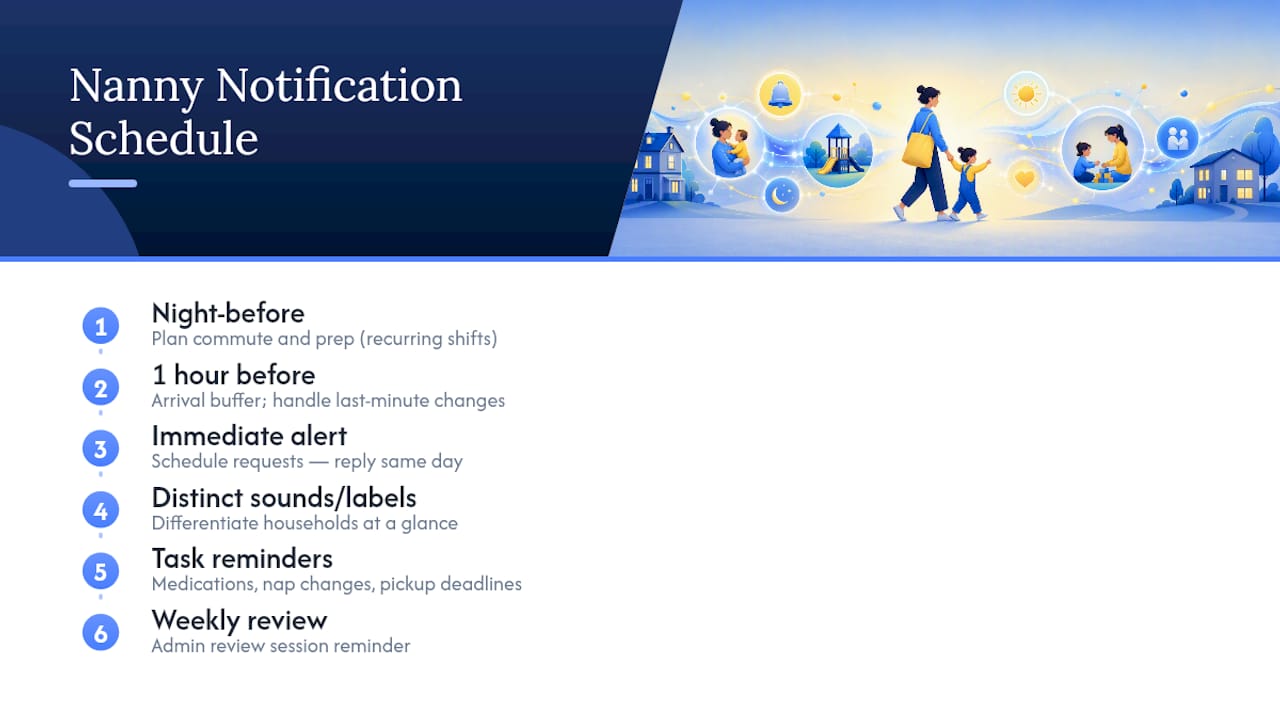
For schedule requests specifically, turn on immediate alerts rather than a daily digest. A parent asking to swap Tuesday for Thursday needs a same-day answer, and a delayed notification can turn a simple swap into a scheduling collision. If you work multiple households, separate the notification sound or label for each family's shifts where the app allows it, so a glance at your lock screen tells you which job just changed without opening anything.
Set a distinct reminder for time-sensitive care tasks tied to a shift, a medication window, a nap transition, a pickup deadline, rather than relying on memory once you are mid-shift and distracted. And build in one weekly reminder for your own review session. The best notification setup treats your admin time with the same seriousness as your actual caregiving hours, because skipped reviews are how small errors turn into real disputes.
Sharing Calendar Access Securely With Parents and Other Caregivers
Sharing access does not mean handing over everything to everyone. A backup babysitter covering one shift does not need to see another family's medication list, and a parent does not need visibility into a different household's schedule. The safest setups use permission tiers: full access for the primary parent managing your shifts, limited shift-only visibility for backup caregivers, and no cross-household exposure at all.

Before granting access, confirm exactly what the other person can see and edit. Can they approve a schedule change, or only view it? Can they see care notes, or just shift times? Vague permissions are how sensitive details end up in front of someone who never needed them.
If a grandparent or occasional backup sitter needs occasional visibility, grant it for a defined window rather than leaving standing access open indefinitely. Revoke access promptly once a job ends or a backup arrangement wraps up. A shared calendar that never gets cleaned up becomes a liability, full of ex-employer details and outdated contact information nobody remembers to remove.
Keep a simple habit: review who has access to what during your weekly planning session, the same slot where you reconcile hours. This prevents access creep, where permissions quietly accumulate until nobody can say who can see what.
Tips for Syncing Your Nanny App With Mobile Devices
Your schedule lives on your phone, so sync reliability matters more than almost any other feature. Start with notification permissions: if your phone's battery optimization settings are aggressive, background app refresh can get throttled, causing schedule requests to arrive late. Check your device's settings and exempt your nanny app from battery restrictions.
Keep the app itself updated. Sync bugs and missed notifications are disproportionately common on outdated app versions, since calendar and time-tracking features get refined with real caregiver feedback.
If you use a shared family tablet at one job and your personal phone at another, confirm each device is logged into the correct household context before a shift starts. Cross-device confusion, checking the wrong tablet for today's schedule, is a common source of last-minute scrambling.
For caregivers managing several jobs, widgets or a home-screen shortcut showing your next shift saves real time over opening a full app each time you need a quick check. Pair that with the Caregiver Scheduling guide for a fuller walkthrough of setting up a reliable mobile workflow across multiple households.
Managing Recurring Shifts and Last-Minute Changes
Most nanny work runs on a repeating pattern, same days, same hours, week after week, until it does not. The strength of a proper scheduling tool is handling both realities without forcing you to rebuild your week from scratch every time something shifts.
Set up recurring shifts once per household, specifying the days, times, and any variation (a shorter Friday, an every-other-Wednesday pattern). That single setup then populates weeks in advance, so you are not manually re-entering the same commitment every Sunday night.
When a change happens, a sick day, an early pickup, a swapped date, the request should modify just that one instance without disturbing the rest of the recurring pattern. This is where generic calendars tend to fall apart: editing one occurrence of a repeating event often creates confusing exceptions that are easy to lose track of. A purpose-built nanny app treats a single shift change and a permanent schedule change as two distinct, clearly labeled actions.
Confirm every last-minute change with a timestamped approval rather than a verbal "sounds good." That single habit is what turns "I thought we agreed to Thursday" into a resolved, five-second lookup instead of a tense conversation.
Privacy Settings for Sensitive Family Information
The information you're storing, medication dosages, emergency contacts, home access details, is exactly the kind of data that needs deliberate privacy controls, not default settings you never bothered to check. Start by confirming who can view each household's care profile and whether that visibility is limited to shift windows or left open indefinitely.
Never copy medication or emergency-protocol details from one household's profile into another's, even as a shortcut. Keeping separate, dedicated views per family is the clearest way to avoid a critical mix-up, a real risk flagged in guidance for caregivers managing multiple households.
Review app permissions periodically, particularly after a job ends. Old access left active is not just clutter, it is a genuine privacy gap. And treat any shared device (a family tablet, a shared login) as a place where sensitive notes should never linger longer than necessary. Set your app to require a passcode or biometric unlock if that option exists, especially if you often work from a phone that other people occasionally pick up.
Why the Real Fix Is Fewer Tools, Not Better Habits
Most advice on nanny scheduling focuses on discipline: log your hours faster, communicate better, be more consistent. That advice is not wrong, but it treats a tooling problem as a willpower problem. Caregivers juggling three households across a text thread, a paper calendar, and a shared family app are not failing at organization. They are working with a system engineered to produce errors.
What gets underestimated is how much emotional weight sits inside a badly tracked schedule. A missed hour on a timesheet is not just an accounting error, it is a small breach of trust with a family who is also trusting you with their children. The fix people reach for is usually "try harder to remember," when the actual fix is removing the memory requirement entirely.
If there is one thing worth prioritizing above all the routines in this guide, it is this: get every job, every hour, and every care detail into a single system before you try to build better habits around it. Habits built on a fragmented setup will always crack under a busy week.
— mercedes
How Thecaretracker Puts This Workflow Into Practice
Everything covered above, one calendar for every job, built-in request approvals, accurate hour tracking, and care details you can reach in seconds, is exactly what Thecaretracker was built around. It is free for caregivers, full stop, so you are not paying to solve a problem that fragmented free tools created in the first place.
Getting started takes about the same time as the setup checklist above: create a profile for each household, add your recurring shifts, and turn on notifications for schedule requests. From there, tracking your hours happens automatically as you clock in and out, with weekly totals and overtime ready to export whenever a family needs them. If you want a head start on the paperwork side, the nanny schedule template and nanny timesheet template on the blog are both ready to use immediately.
Set aside thirty minutes this week, build your profiles, and try the first Friday review habit described above. Start with Thecaretracker and see how much lighter your week feels once the tracking is automatic.