
Yes, you can submit, approve, and track paid time off entirely through an app. A nanny app like Thecaretracker turns nanny PTO laws and policies into a simple digital workflow: you submit a request, the family reviews it, they approve or deny it, and your balance and calendar update automatically. No spreadsheets, no guessing what's left in the bank.
TL;DR:
- PTO requests are automatically checked for scheduling conflicts and may suggest alternative dates if overlaps occur.
- App notifications for approval or denial rely on timely family responses, so early submission and follow-up improve success rates.
- PTO balances can be front-loaded or accrued, with accruals calculated based on hours worked and updated in the app after each pay period.
- PTO must be clearly separated from unpaid leave in requests, as only approved paid time reduces the available balance and affects payroll.
- Proper recordkeeping, including screenshots and pay stub reviews, is essential to prevent disputes over PTO balances and payouts.
Table of Contents
- How Do You Submit a PTO Request From Your Phone?
- What Happens After You Submit: Approvals, Conflicts, and Guarantees
- How Do PTO Balances and Accruals Show Up in the App?
- Where Does PTO Show Up on Pay Stubs and Records?
- Why Thecaretracker Works for U.S. Nannies Managing PTO
- What Are the Legal Requirements for Nanny PTO by State?
- How Does Paid Time Off Affect Nanny Taxes and Payroll?
- How Do You Handle Unpaid Time Off Versus PTO in the App?
- How Should You Communicate PTO Policies With Your Employer?
- A Nanny's Quick Checklist for Managing PTO Without Stress
- Get Started Tracking Your PTO With Thecaretracker
- Sources
How Do You Submit a PTO Request From Your Phone?
Submitting time off should take less time than deciding what to eat for lunch. Most caregiver apps, including Thecaretracker, build the request flow around a few taps rather than a phone call or an awkward conversation at the end of a long shift.
Here's the sequence that works across most nanny-facing apps:
- Open the requests or calendar tab and select "Paid time off" (or a similarly labeled request type).
- Choose your dates. Pick a single day, a range, or several non-consecutive dates depending on what the app allows.
- Flag priority if the app supports it. Some platforms let you mark a request as "must-have" versus "nice-to-have," which signals to the family how firm your need actually is.
- Add context. Note the reason if you want to, specify partial-day times if you're only asking off a few hours, and attach anything relevant, like a flight confirmation.
- Submit and check "My requests." A confirmation notice should appear immediately, and the request typically shows a pending status until the family acts on it.
Scheduling platforms commonly structure this exact sequence, request type, date range, and a priority flag, because it mirrors how shift and PTO requests work across the caregiving and hourly workforce industries generally. Success looks like a confirmation banner and a grayed-out placeholder on your calendar marking the requested days, even before approval comes through.
Pro Tip: Submit PTO requests as early as your employment agreement requires, then set a personal reminder to check the app 48 hours later. Families juggling their own calendars sometimes miss a notification, and a polite follow-up message inside the app keeps a paper trail without feeling like a nag.
What Happens After You Submit: Approvals, Conflicts, and Guarantees
Once you hit submit, the ball moves to the family's side of the app. They get a notification and typically have three options: approve, deny, or propose a reschedule.
The more useful apps don't just pass the request along blindly. They check it against your existing schedule first.
- Conflict detection flags overlapping shifts automatically, so a family can't accidentally approve a day off that collides with a commitment already on the calendar.
- Alternative date suggestions sometimes appear when a conflict pops up, saving you a round of back-and-forth messages.
- "Must-have" requests can carry more weight depending on the app's settings. Whether that designation actually guarantees the time off, or simply flags your preference more strongly to the family, depends on whether the platform enforces the rule or just signals it. Know which one your app does before you count on it.
- In-app messaging lets you negotiate specifics, like splitting a week or adjusting start dates, without losing the original request in a text thread that disappears into your phone's history.
That last point matters more than it sounds. When a dispute happens six months later, "I asked for that Friday off" is a lot weaker than a timestamped request sitting in your app history with a matching approval attached to it.
How Do PTO Balances and Accruals Show Up in the App?
Families generally handle PTO one of two ways: front-loaded or accrued. A front-loaded allowance gives you the full annual amount on day one or at the start of the year. Accrual builds your balance gradually with each pay period, which is common when a family wants PTO to reflect actual hours worked.
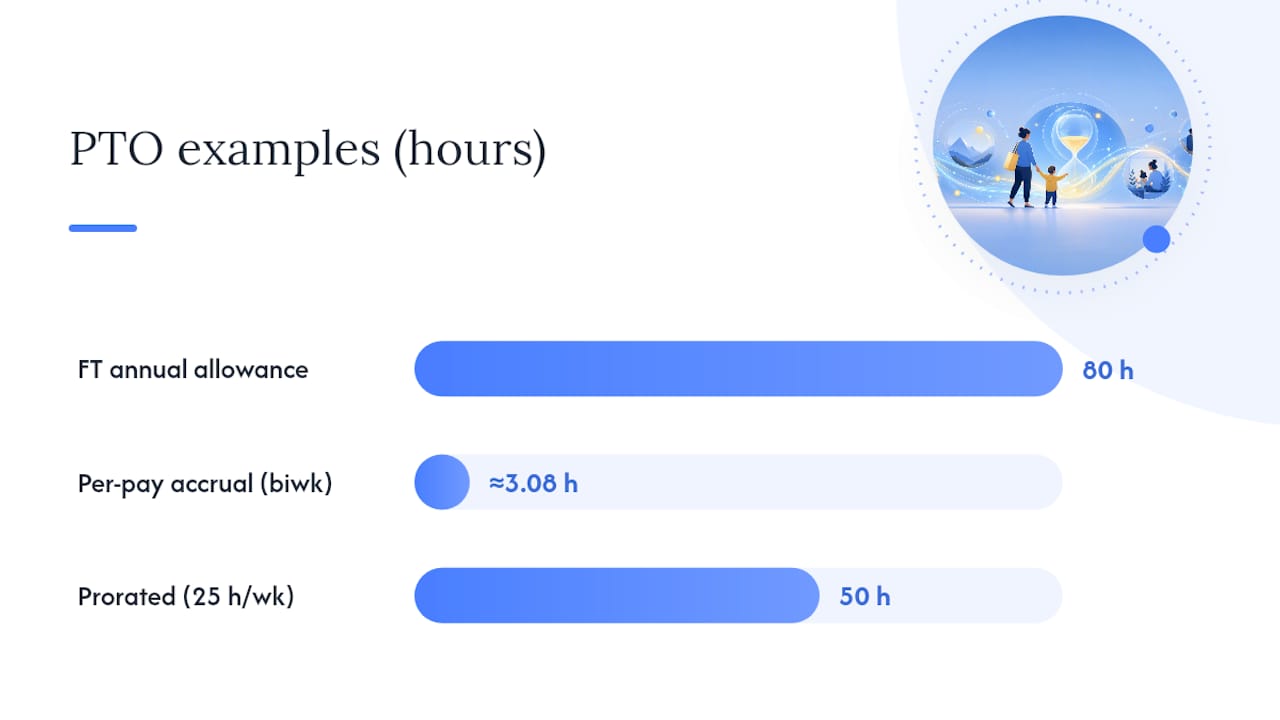
The accrual math is simpler than it looks. If your contract offers 80 hours of PTO annually and you're paid biweekly (26 pay periods a year), you accrue roughly 3.08 hours per pay period. That number should show up automatically in a properly configured app rather than something you calculate by hand.
Part-time nannies need a different formula, since a flat allowance doesn't make sense for someone working fewer hours than a standard full-time schedule. The proration formula is:

(Weekly hours ÷ 40) × full-time PTO hours = your prorated PTO
So a nanny working 25 hours a week with a full-time PTO allowance would prorate their PTO hours accordingly each year. That math should populate a dashboard automatically instead of living in a notebook.
- Front-loaded balances typically show as a single number that decreases with each approved request.
- Accrual balances usually update after each pay period closes, not immediately after a shift.
- Pending requests often show as a separate line from confirmed deductions, which matters because a "pending" 24 hours hasn't actually left your available balance yet.
Configuring accruals or allowances directly in the app, rather than tracking them on paper, cuts down on the math errors that cause most payroll disputes between nannies and the families who employ them. Screenshot your balance monthly. It costs nothing and saves an argument later.
Where Does PTO Show Up on Pay Stubs and Records?
PTO should appear on your pay report as its own line, separate from regular hourly wages. Depending on the platform, you might see it as a dedicated "paid time off" entry, a running balance column, or both side by side.
If you leave a position with unused PTO, some states require payout, and even where it's not required, many families choose to pay it out as a courtesy. The math is simple: hourly rate multiplied by unused hours. For example, a nanny earning $22 an hour with 12 unused hours would be owed a payout calculated accordingly, though whether that payout is required depends on your state and your written agreement, so treat this as an example rather than legal guidance.
Good recordkeeping protects both sides of the relationship:
- Keep signed timesheets on file, even if the app also tracks hours digitally.
- Screenshot every approved PTO request the moment it's confirmed.
- Save copies of pay reports monthly rather than trying to reconstruct a year of history in December.
Shared spreadsheets and paper timesheets still work for some households, but apps built for household employers reduce the manual entry that causes numbers to drift apart over time. If your balance doesn't match what you expected, gather your proof first, attach it directly in the app, and send a message referencing the specific request date rather than a general "I think there's an error" note.
Pro Tip: Keep a personal folder, digital or physical, with every screenshot organized by month. When a discrepancy comes up, being able to say "here's the approval from March 14th" ends the conversation faster than trying to remember what happened.
Why Thecaretracker Works for U.S. Nannies Managing PTO
Thecaretracker was built around exactly the workflow this article describes, and it costs caregivers nothing to use.
- Submit and approve PTO and schedule requests without leaving the app.
- View every job across multiple families in one unified calendar.
- Track weekly hours accurately, which feeds directly into accrual math.
- Access essential care information instantly, including allergies, medications, and nap or nursing schedules for the kids in your care.
Our own coverage of this topic goes deeper into specific mechanics. If you want a closer look at tracking PTO the right way, or how to build pay reports that show PTO balances clearly, those articles walk through the app screens step by step.
The core idea stays consistent: your requests, your balance, and your history all live in one place instead of scattered across text messages and a notebook you can't find when you need it.
What Are the Legal Requirements for Nanny PTO by State?
No federal law requires private employers to offer paid time off, and that includes nanny employers. PTO for nannies is almost always a matter of private agreement between the nanny and the family, not a legal mandate.
Some states and cities carve out exceptions. A handful of jurisdictions, including certain cities in California and Washington, have paid sick leave ordinances that can apply to domestic workers depending on hours worked and employer size. Whether a specific law applies to your situation depends heavily on where you work and how many hours you log, so check your state's department of labor site or ask directly rather than assuming a blanket rule applies nationwide.
Because the legal floor is so thin, the written agreement between you and your family functions as the real rulebook. A clear PTO policy spelling out total days, notice requirements, carryover rules, and payout terms at termination prevents the majority of disputes that show up later. Ten paid days a year is a common benchmark among household employers, though it's a norm, not a legal minimum.
If your state has no specific mandate, that doesn't mean PTO is off the table. It means the number, the accrual method, and the rules all come down to what you and your employer put in writing, then track consistently inside whatever app you use.
How Does Paid Time Off Affect Nanny Taxes and Payroll?
PTO pay counts as regular taxable wages, the same as hours actually worked. When a family pays you for a day off, that amount gets reported the same way your hourly wages do, subject to the same federal income tax, Social Security, and Medicare withholding.
For household employers, this means PTO hours need to run through the same payroll process as worked hours, not get handed over as a separate, off-the-books cash payment. Doing so casually creates tax reporting gaps that can cause problems for both sides come tax season.
If your family uses a household payroll service, PTO hours typically flow into the same pay run automatically once approved in the app. That's one advantage of keeping requests inside a connected system rather than approving time off verbally and hoping it gets remembered by the next pay date. A payroll consultation can help sort out how PTO should be reported if your family is setting up payroll for the first time or untangling a mismatch from a previous pay period.
How Do You Handle Unpaid Time Off Versus PTO in the App?
Unpaid time off and PTO are not the same request, and treating them identically in an app creates confusion down the line. PTO draws from an accrued or allotted balance and shows up as paid on your pay report. Unpaid time off does not touch that balance because there's no pay tied to it.
Most apps that support both request types let you select which kind you're asking for at the point of submission. Choosing correctly matters because it determines whether the hours reduce your PTO balance or simply block off your calendar with no pay attached.
A few situations call for unpaid time off specifically:
- You've exhausted your PTO balance but still need a day.
- The family agreed to unpaid leave for an extended personal matter.
- You're new and haven't started accruing PTO yet under an accrual-based system.
Selecting the wrong category isn't just a technicality. It affects your paycheck and your balance simultaneously, so double check the request type before submitting, especially early in a new job when accrual hasn't built up a cushion yet.
How Should You Communicate PTO Policies With Your Employer?
The clearest PTO arrangements start with a written policy, not a verbal understanding from your first week on the job. Whether it's a front-loaded allowance, an accrual rate, or a combined bank covering vacation and sick days, put the specifics in your employment agreement before you need to use any of it.
A combined PTO bank, where all paid leave draws from one pool rather than separate vacation and sick categories, tends to simplify things for both sides. Fewer categories mean fewer arguments about which bucket a particular day should come from.
Once the policy exists on paper, the app becomes the place where it plays out day to day. Use in-app notes when submitting a request to reference the specific policy term it falls under, since that habit turns a vague "can I take Friday off" into a documented request tied to an agreed number of hours. If your family uses sub-calendars or a shared calendar system, keeping a synchronized view of approved time off helps prevent the classic problem of one side thinking a day was approved when it wasn't confirmed in writing.
Revisit the policy annually, especially if your hours or schedule changed significantly since you last agreed on the terms.
A Nanny's Quick Checklist for Managing PTO Without Stress
I'd rather build a habit than fix a mistake, and PTO tracking rewards habit more than almost anything else in this job. Update your calendar the moment a request gets approved, not the night before you leave. Reconcile your hours weekly instead of letting a month pile up. Screenshot every approval as it happens.
Before submitting a request: give as much notice as your agreement requires, attach a note explaining timing if it's unusual, and keep a signed timesheet on file regardless of what the app tracks digitally. After payday, glance at your pay report and confirm the PTO entry matches what you expected.
None of this takes more than a few minutes a week. An app that handles the math and the paper trail for you turns PTO from a recurring source of tension into a settled, checked-off item on your list.
— mercedes
Get Started Tracking Your PTO With Thecaretracker
Thecaretracker gives you the exact workflow this article walked through, submitting requests, tracking accruals, and confirming balances, without costing caregivers a dime. Where a shared spreadsheet or a paper calendar leaves gaps for miscommunication, the app keeps every request, approval, and hour worked in one place both you and your family can check anytime.
The app suits any nanny juggling multiple families, part-time hours that need prorating, or a household still relying on text messages to track time off. If you came here because a PTO disagreement is already brewing, Thecaretracker's app gives you the documentation to resolve it fast. If your family needs help setting up payroll or PTO policy correctly from the start, a payroll consultation walks through the setup so accruals and pay stubs match from day one. Download the app and start logging your first request today.
Sources
- Do nannies get paid vacation? Laws and PTO standards — LegalClarity
- Nanny payroll policies, benefits, and recordkeeping guide — SmartSMSSolutions
- Equina Scheduling docs — submit shift requests