
Yes, you can create a nanny pay-stub-style report directly from your time-tracking app and use it to request or verify pay. Apps like Thecaretracker let you export a PDF or CSV summary of your hours, rates, and earnings, giving you a clear, shareable record every pay period.
Three immediate steps to take right now:
- Export your report as a PDF (to send to your employer) or CSV (for your own records or a spreadsheet).
- Confirm the pay period dates, total hours, and overtime before sending.
- Attach the PDF to a short message stating the exact total you're requesting or confirming.
For tax context, IRS Publication 926 explains when a household caregiver is classified as an employee versus an independent contractor, which determines whether your employer will issue a W-2 or a 1099. Your app report handles the day-to-day pay verification side. Formal payroll documents are the employer's responsibility once that classification is clear.
Key Takeaways
App-generated pay-stub reports are a reliable, caregiver-controlled way to verify hours, request payment, and build the documentation trail you need at tax time, as long as they include the right fields and are stored securely.
| Point | Details |
|---|---|
| Export before payday | Generate and review your PDF or CSV report before the pay period closes, not after. |
| Include all required fields | Pay period dates, hours, rates, overtime, gross pay, deductions, net pay, and YTD totals are all expected. |
| Keep records for four years | Retain pay-stub copies and shift logs to satisfy IRS and labor-record requirements. |
| App reports don't replace W-2s | Your report verifies pay; the employer's W-2 or 1099 handles formal tax reporting. |
| Thecaretracker | Free for caregivers, with PDF/CSV exports, multi-home support, and state-aware overtime tracking. |
This article is general information, not a substitute for advice from a qualified financial advisor. Consult a qualified financial professional about your own circumstances before acting on anything here.
Table of Contents
- What should nanny pay stubs include?
- How do you generate and export a pay-stub report from your app?
- How do you use the pay-stub report to request or verify payment?
- How do you show overtime and state-specific rules on your report?
- When is an app report not enough? Recordkeeping, W-2s, and taxes
- Why I always export my report before payday
- Thecaretracker keeps your hours and reports organized
- Sources
What should nanny pay stubs include?
A pay-stub-style report is only useful if it contains the fields an employer, accountant, or dispute mediator can actually read. Most states expect a detailed wage statement each pay period, and a complete report simplifies tax filing and dispute resolution.
| Field Category | What to Include |
|---|---|
| Header | Pay period start/end, pay date, pay frequency, employer name and contact |
| Employee info | Your full name, last 4 digits of SSN or employee ID (never full SSN) |
| Earnings | Regular hours × rate, overtime hours × overtime rate, holiday/premium pay, bonuses, reimbursements, gross pay |
| Deductions | Federal FICA (Social Security, Medicare) if withheld, any voluntary withholdings, net pay |
| YTD totals | Year-to-date gross, YTD taxes/deductions, YTD net pay |
| Supporting detail | Shift-by-shift log or timesheet link, mileage/expense lines, verification or signature line |
YTD totals matter more than most nannies realize. When your employer prepares a W-2 at year-end, those running totals are what they reconcile against. A pay stub that tracks YTD gross and YTD taxes from the first pay period makes that process straightforward for everyone.
Pro Tip: Keep your SSN off any message or email. The last four digits are enough to identify the record. Store the full version only in a secure, password-protected file.
How do you generate and export a pay-stub report from your app?
Follow these steps in order. Fixing errors before you export saves you from sending a corrected version later.
- Confirm the pay period and rates. Open your app, check that the pay period start and end dates are correct, and verify your hourly rate. Fix any missed or incorrect clock-ins before moving on.
- Open the earnings or pay-report view. This screen should show each shift, the hours logged, and the calculated totals. Thecaretracker's time tracker displays weekly hours and flexible report views so you can review everything in one place.
- Choose your export format. Select PDF when sending to a parent or employer. Choose CSV if the family wants to import the data into a spreadsheet or if you're building your own records file.
- Review the exported file. Before sending, confirm it shows: pay period dates, total regular hours, overtime hours and rate, gross pay, any deductions, net pay, and YTD totals.
- Save a secure copy, then send. Store the file in a password-protected folder. Attach the PDF to your payment request message and include a one-line summary of the total amount due.
Nanny-focused apps can include payroll-ready features such as state-aware overtime rings, W-2 and Schedule H summaries, GPS clock-in, and CSV/PDF export. Before sending, run through this quick checklist:
- All shift timestamps are accurate and complete.
- Overtime hours are calculated and labeled separately.
- Mileage or expense reimbursements appear on their own lines.
- The pay period matches what you and the employer agreed on.
Pro Tip: If your app supports GPS clock-ins, those location-stamped records add an extra layer of accuracy. They're especially useful if a pay dispute ever comes up.
How do you use the pay-stub report to request or verify payment?
Attach the exported PDF and state the exact total in the first sentence of your message. A clear, specific ask gets a faster response than a vague follow-up.
Message template: requesting payment
Message template: confirming payment received
If there's a discrepancy, use this dispute checklist:
- Attach the shift log or screenshot from the app showing individual clock-in/out times.
- Write out the math clearly: regular hours × rate + overtime hours × overtime rate = gross pay.
- Include any message history where hours or rates were discussed or confirmed.
- Give the employer 48 hours to respond before following up a second time.
- If the issue isn't resolved after two follow-ups, keep all documentation and consider contacting your state's Department of Labor.
Only share the fields the employer needs to verify the pay. Avoid sending your full SSN in any message or email.
Pro Tip: Ask the employer to send a one-line confirmation once payment goes through. That single message closes the loop and gives you a clean record for each pay period.
How do you show overtime and state-specific rules on your report?
Show overtime hours and the overtime rate on separate lines, and include the calculation: hours × rate = amount. That makes the report auditable without any back-and-forth.

The federal baseline is straightforward: overtime is typically 1.5× the regular rate for hours worked beyond 40 in a workweek. Several states add daily overtime triggers. California nanny overtime rules, for example, require overtime after 9 hours in a single day, not just after 40 hours in a week. Alaska and Nevada have similar daily thresholds.
A short calculation example for a weekly report:
- Regular: 40 hours × $20.00 = $800.00
- Weekly overtime: 5 hours × $30.00 = $150.00
- Gross pay: $950.00
Label each line exactly that way on the stub. If your state has a daily overtime rule, add a separate line for daily overtime hours so the math is transparent.
Pro Tip: Include the date and clock-in/out time for each shift on the report, not just weekly totals. Shift-level detail is what makes overtime calculations auditable if a dispute arises.
When is an app report not enough? Recordkeeping, W-2s, and taxes
App reports are caregiver-facing records. They're usually sufficient to request or verify pay, but they don't replace the employer's obligation to file payroll taxes and issue a W-2 or 1099.
IRS Publication 926 explains when a household caregiver is an employee (requiring the employer to withhold and remit FICA taxes and file a W-2) versus an independent contractor (where payments may be reportable but not subject to employment taxes). That classification is the employer's responsibility, not yours. What you control is your own documentation.
Keep pay-stub copies and shift logs for at least four years. LegalClarity recommends this retention period to satisfy IRS and labor-record requirements, and it aligns with the statute of limitations for most wage claims. Detailed records also make W-2 and Schedule H preparation straightforward at year-end.
Your recordkeeping checklist:
- Save every exported pay-stub PDF and CSV in a labeled, password-protected folder.
- Keep shift logs and expense receipts alongside the pay summaries.
- Note any changes in pay rate or schedule in writing (a text or email confirmation works).
- At year-end, reconcile your YTD totals against the W-2 your employer provides.
If your employer's tax classification or withholding approach is unclear, encourage them to seek a payroll consultation. Sorting that out early prevents a messy tax situation for both of you.
How to use a pay-stub template and adapt it to your app exports
A nanny timesheet template gives you a ready-made structure you can fill in manually or match to your app's export fields. Thecaretracker's blog offers a downloadable version compatible with common spreadsheet tools.
File format guidance:
- PDF: Use this when sending to a parent or employer. It's clean, non-editable, and looks professional.
- CSV: Use this when the family wants to import data into their own spreadsheet, or when you're building a running annual record.
Quick adaptation tips:
- Align the pay period dates in the template to exactly match what your app exports.
- Label overtime lines the same way your app does so the numbers match without explanation.
- Add a small verification note or signature line at the bottom if your employer prefers a signed copy. For families claiming dependent care benefits, accurate records also support dependent care FSA documentation.
Why I always export my report before payday
Every nanny who has ever had a pay mismatch knows the sinking feeling of trying to reconstruct hours from memory. Exporting your app report before payday, not after, is the habit that prevents that situation entirely.
A clear pay-stub-style report does more than document hours. It signals professionalism, reduces the chance of an honest mistake going unnoticed, and gives you something concrete to point to if a number doesn't match. Bringing up a discrepancy with a report in hand is a straightforward conversation. Bringing it up without one is an argument.
My practical habit: export the report the evening before the pay period closes, review it once, and send it with a short, friendly message. That one step has resolved every pay question before it became a problem.
Thecaretracker keeps your hours and reports organized
Tracking hours accurately and exporting a clean pay-stub-style report shouldn't require a second job. Thecaretracker is free for caregivers and built specifically for nannies, au pairs, and household caregivers who work across multiple families.
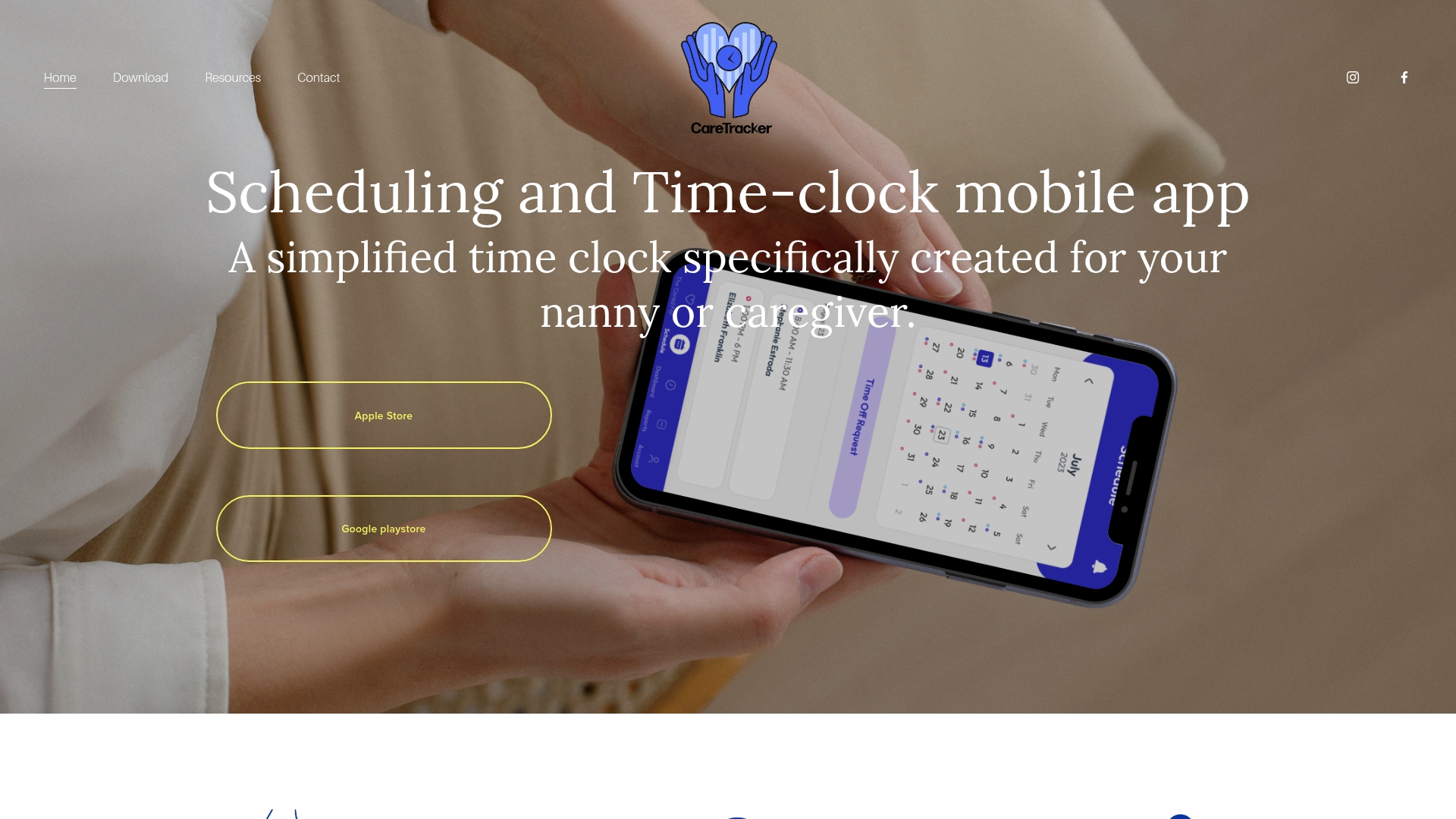
The app covers every step in this guide: weekly time tracking, flexible PDF and CSV report exports, multi-home switching, schedule request approvals, and secure sharing with families. State-aware overtime support means your overtime lines calculate correctly whether you work in California, Alaska, or anywhere else. For families who need to convert those app reports into official payroll filings, Thecaretracker also offers a payroll consultation service to handle W-2s, Schedule H, and prior-year cleanup.
Download Thecaretracker for free and export your first pay-stub-style report today.
Sources
- Family caregivers and self-employment tax | Internal Revenue Service
- Nanny Pay Stub Template: Setup, Taxes, and Recordkeeping - LegalClarity
- Nanny Pay Stub Guide: Creating Accurate and Legal Pay Stubs